> ## Documentation Index
> Fetch the complete documentation index at: https://docs.zero-x.cloud/llms.txt
> Use this file to discover all available pages before exploring further.
# 7.1 Report
## 3. Analytics and Reporting
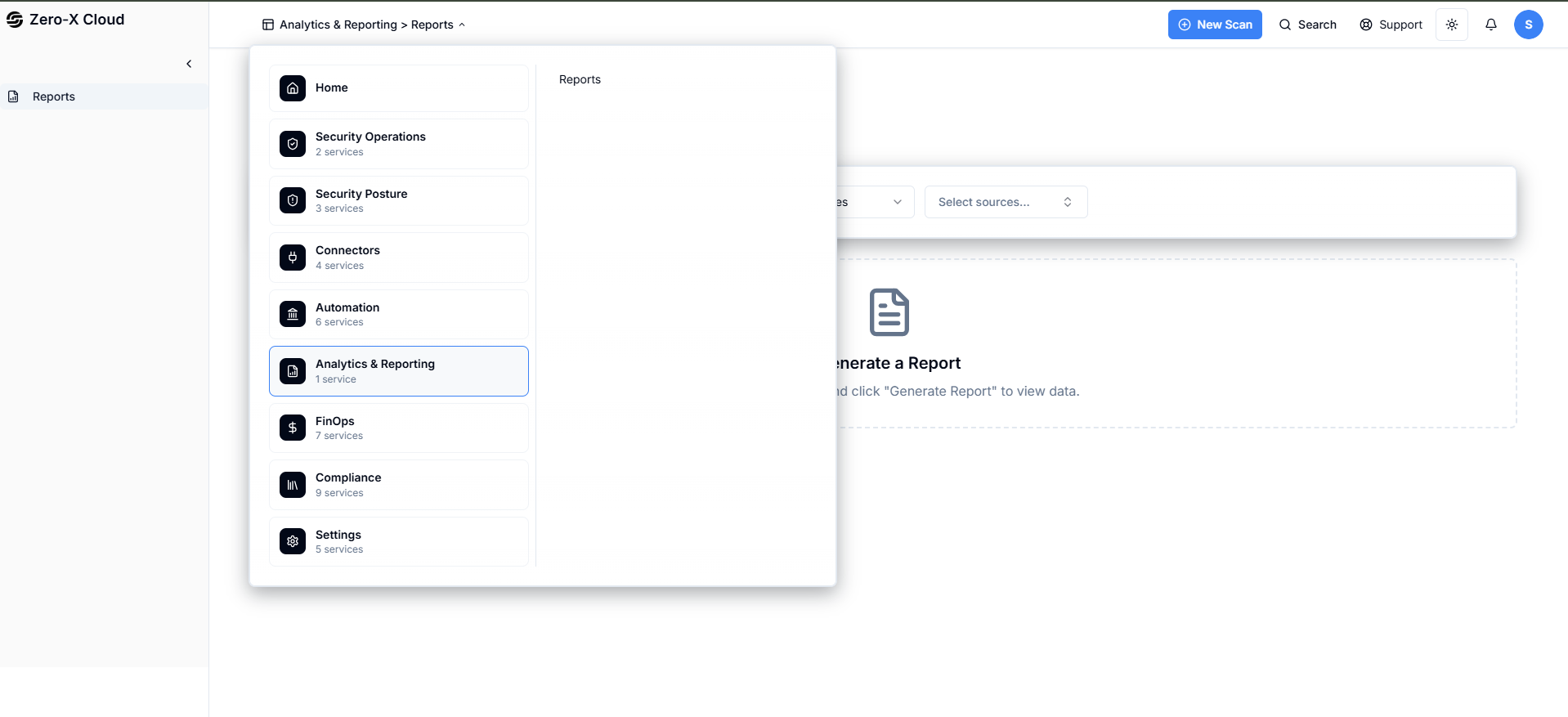
**Step 1 :-** Go To home Page
**Step 2 :-** Select option Analytics and Reporting
**Step 3 :-** There is 1 option i.e. Report
**Step 4 :-** Click on Report
3.1 Analytics & Reporting > Reports
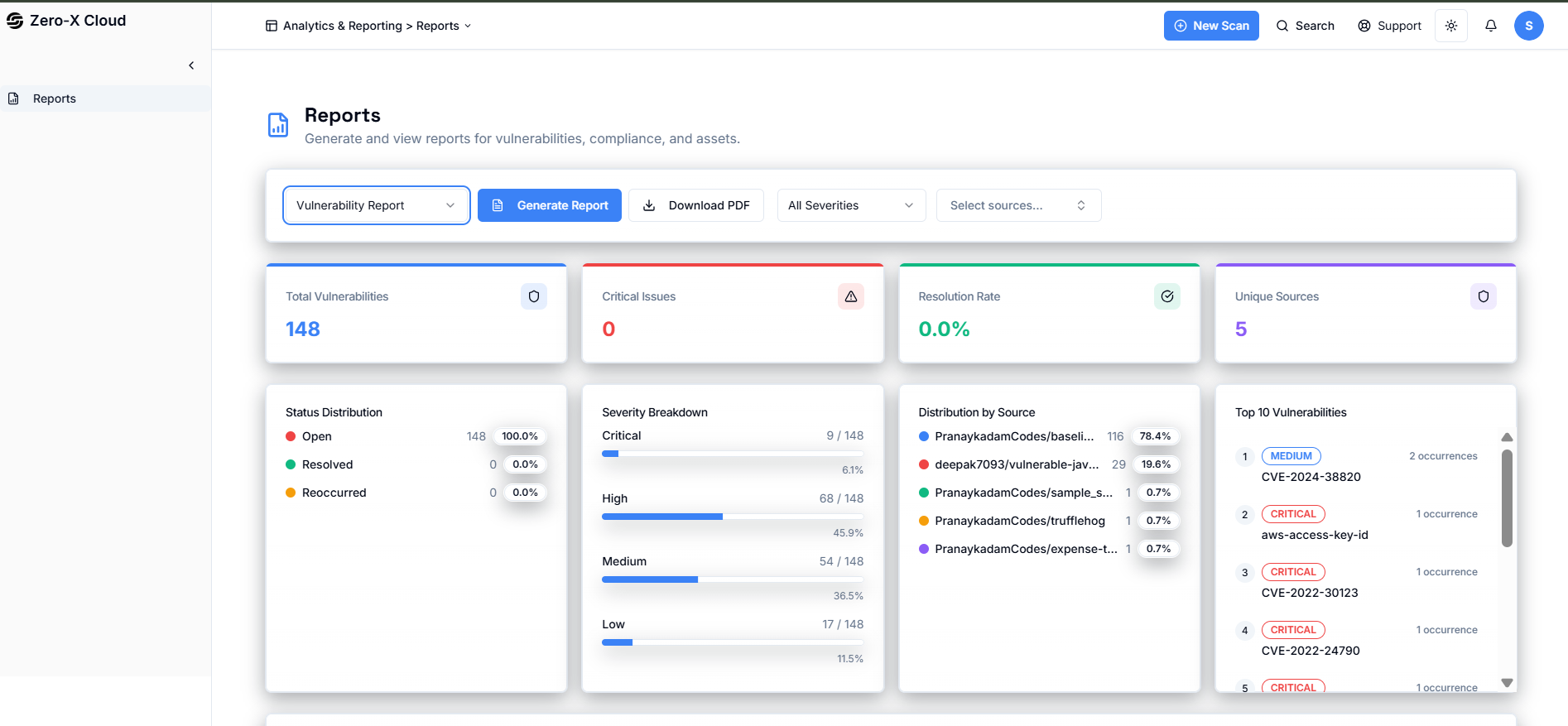
 **Step 5 :-** On Report Dashboard select your option before generating report
**Step 6 :-**
1. Vulnerabilities report
2. CSPM Findings report
3. Inventory report
4. Cost Finding report
**Step 7 :-** Select inventory report
**Step 8 :-** If you want to download you can click on download PDF.
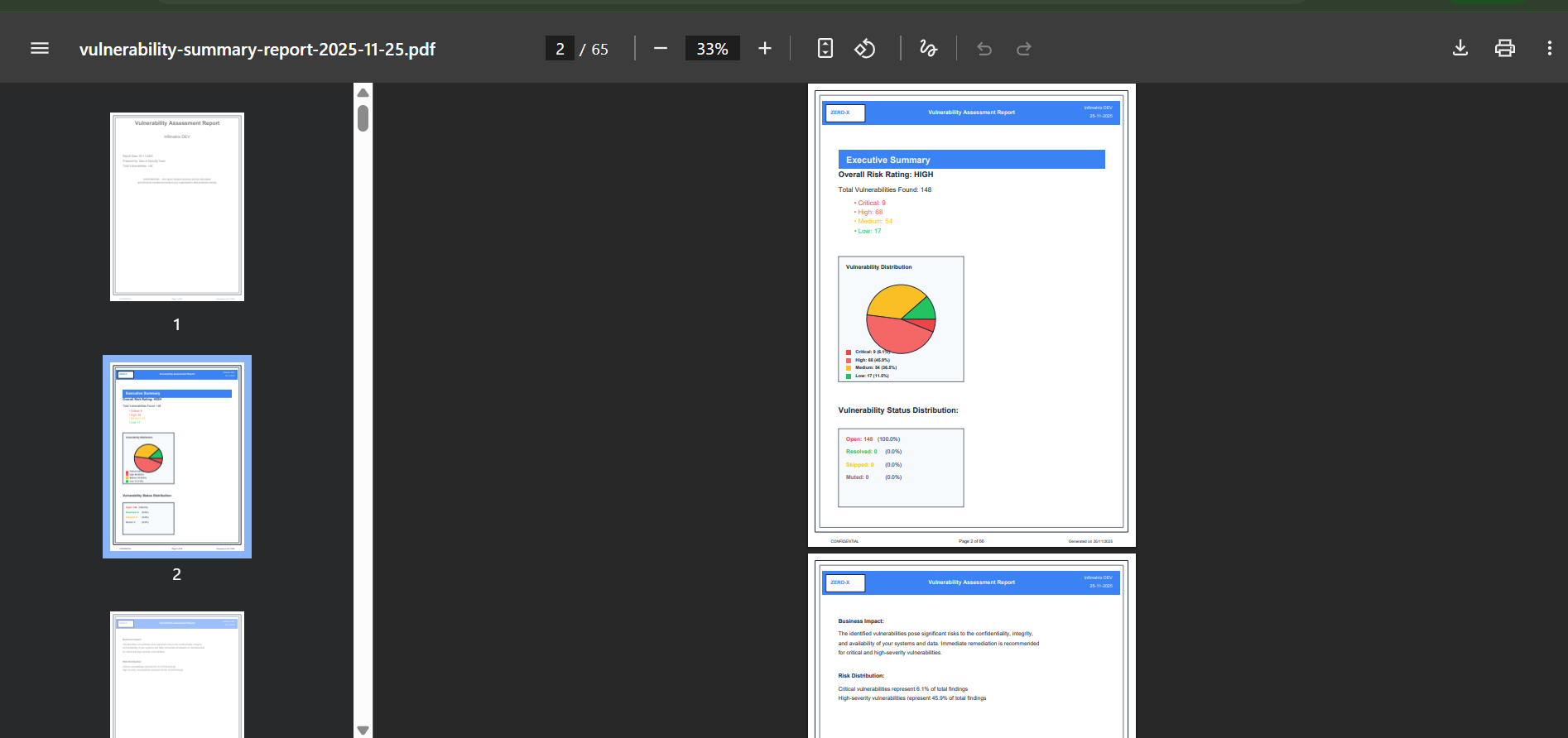
 **Step 9 :-** Once you download your report it look like this
Here is sample of Report