> ## Documentation Index
> Fetch the complete documentation index at: https://docs.zero-x.cloud/llms.txt
> Use this file to discover all available pages before exploring further.
# 1.2 Scans
Home > Connectors > Scans
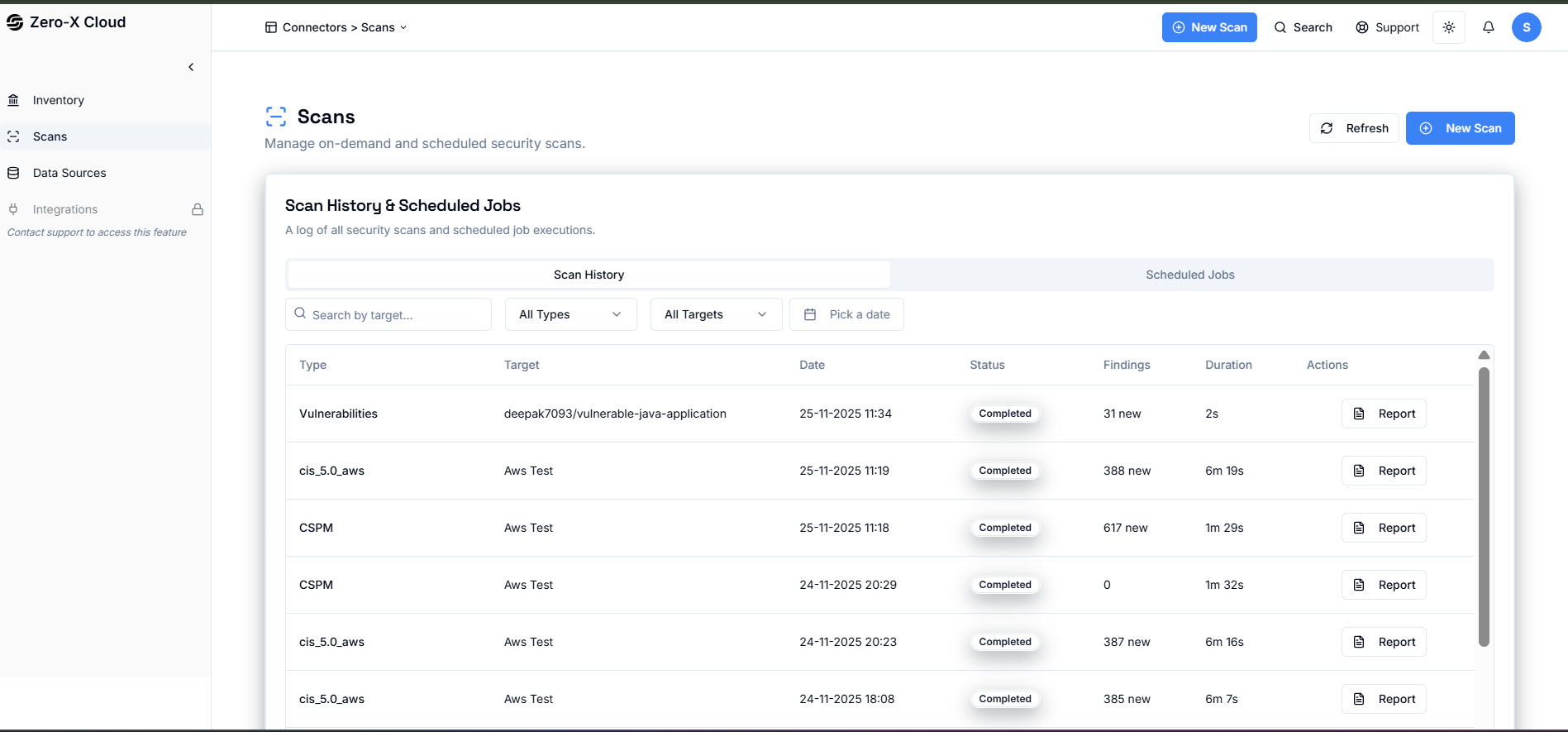
### Step 4: Clicked on Scan Now, You can see your scanned here.
On the same dashboard you can see different option in the left side i.e.
1. Inventory
2. Scans
3. Data source
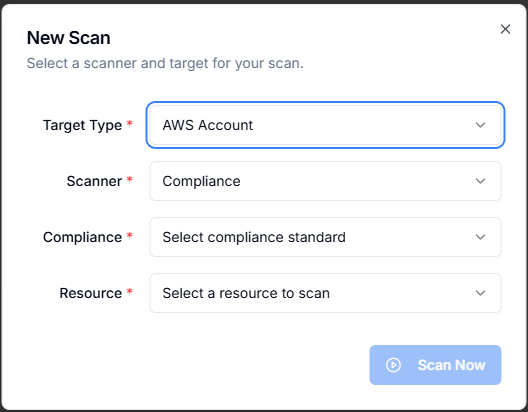
### Step 5: To Identify your compliance clicked On new scan
1. Select your target type means your account type
2. Clicked on Scanner select Compliance
* Compliance version CIS 5.0 AWS 5.0
3. Resource aws cloud
 ***
Once you clicked on scans, There are multiple scans are present like given below
***
Once you clicked on scans, There are multiple scans are present like given below