> ## Documentation Index
> Fetch the complete documentation index at: https://docs.zero-x.cloud/llms.txt
> Use this file to discover all available pages before exploring further.
# 8.1 Cost Explorer
**Step 1 :-** Go to you home page
**Step 2 :-** Select FinOps
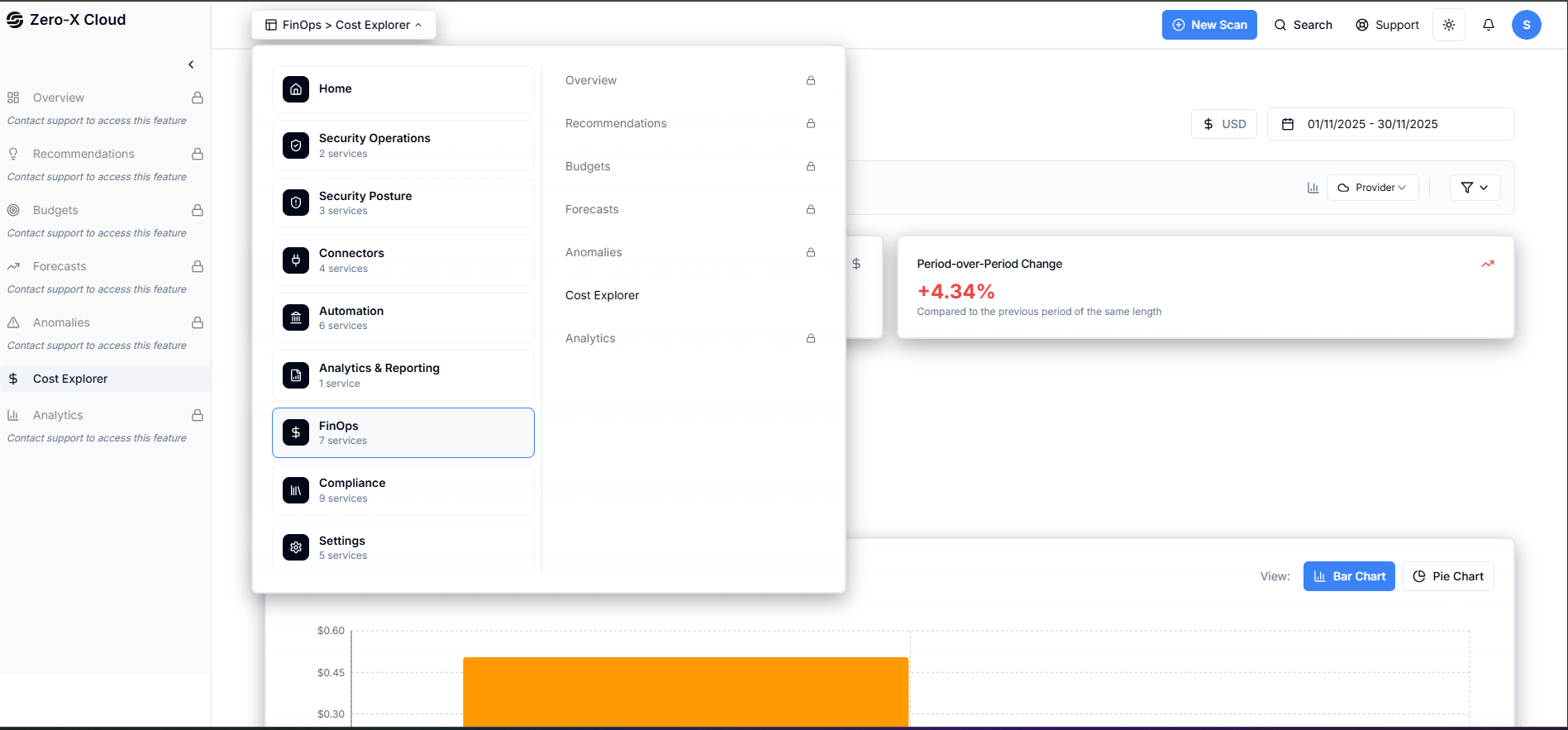 **Step 3 :-** Select Cost Explore
**Step 4 :-** You can see FinOps dashboard like this
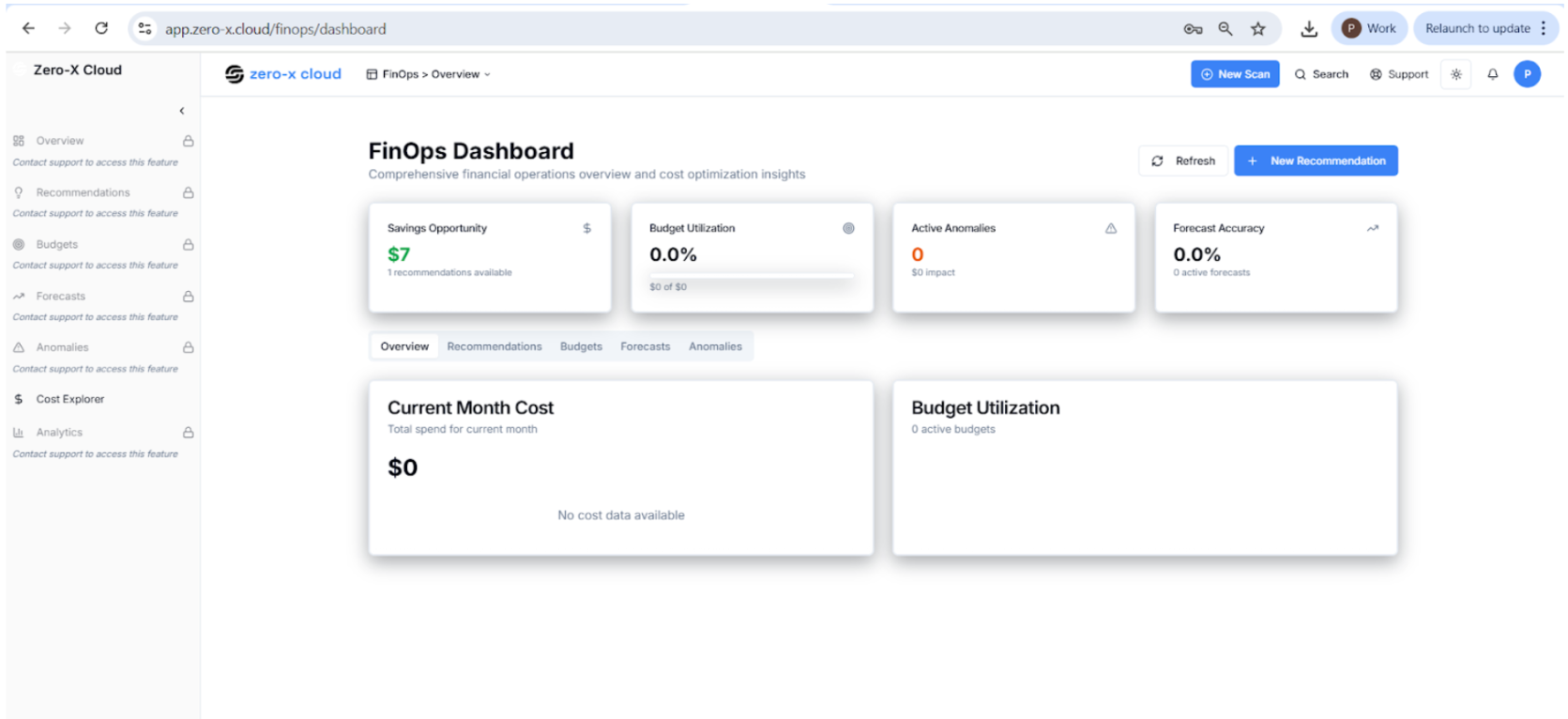 **Step 5 :-** Once you are on FinOps dashboard
**Step 6 :-** See the left side menu i.e. Cost Explorer
**Step 7 :-** Click on Cost explorer
**FinOps > Cost Explorer**
Analyze your cloud spending across providers, accounts, and services.
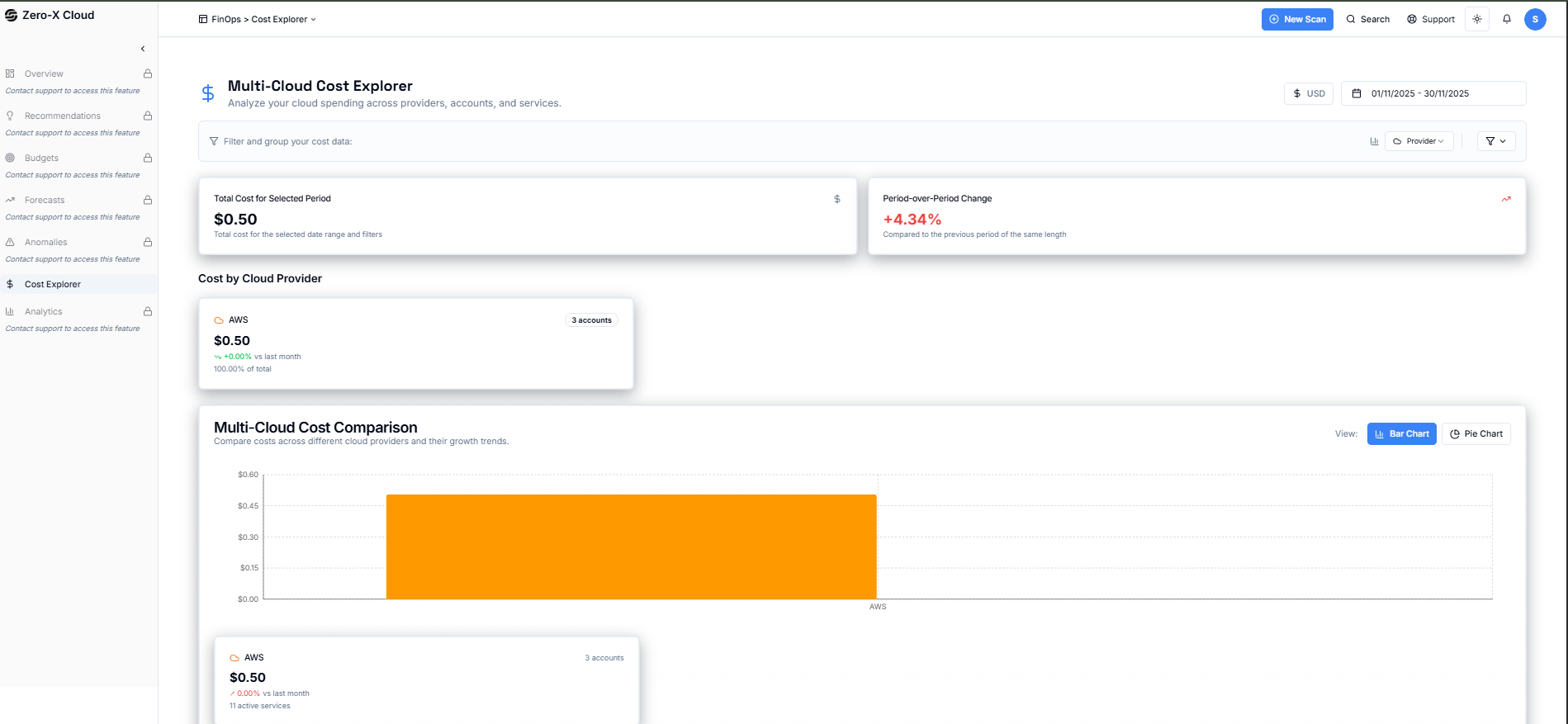 **Step 8 :-** You can select your date and period of time to see total cost optimization
**Step 9 :-** Right Side Corner there is option to 1, 2, 3 month or 1 Year cost explorer option
**Step 10 :-** there some categories on you Cost Explorer dashboard where you can cost category wise give below
| Category |
| ---------------------------- |
| Total Cost (All Providers) |
| Period-over-Period Change |
| Cost by Cloud Provider |
| Multi cloud Cost comparison |
| Active AWS Services |
| Billing History |
| Cost by Services |
| Cost by Region |
| Cost by account and provider |