> ## Documentation Index
> Fetch the complete documentation index at: https://docs.zero-x.cloud/llms.txt
> Use this file to discover all available pages before exploring further.
# Support Center
The Support Center in Zero-X allows users to submit, manage, and track support tickets. This section outlines how to access the Support Center and the process for creating and maintaining support requests.
## 1. Accessing the Support Center
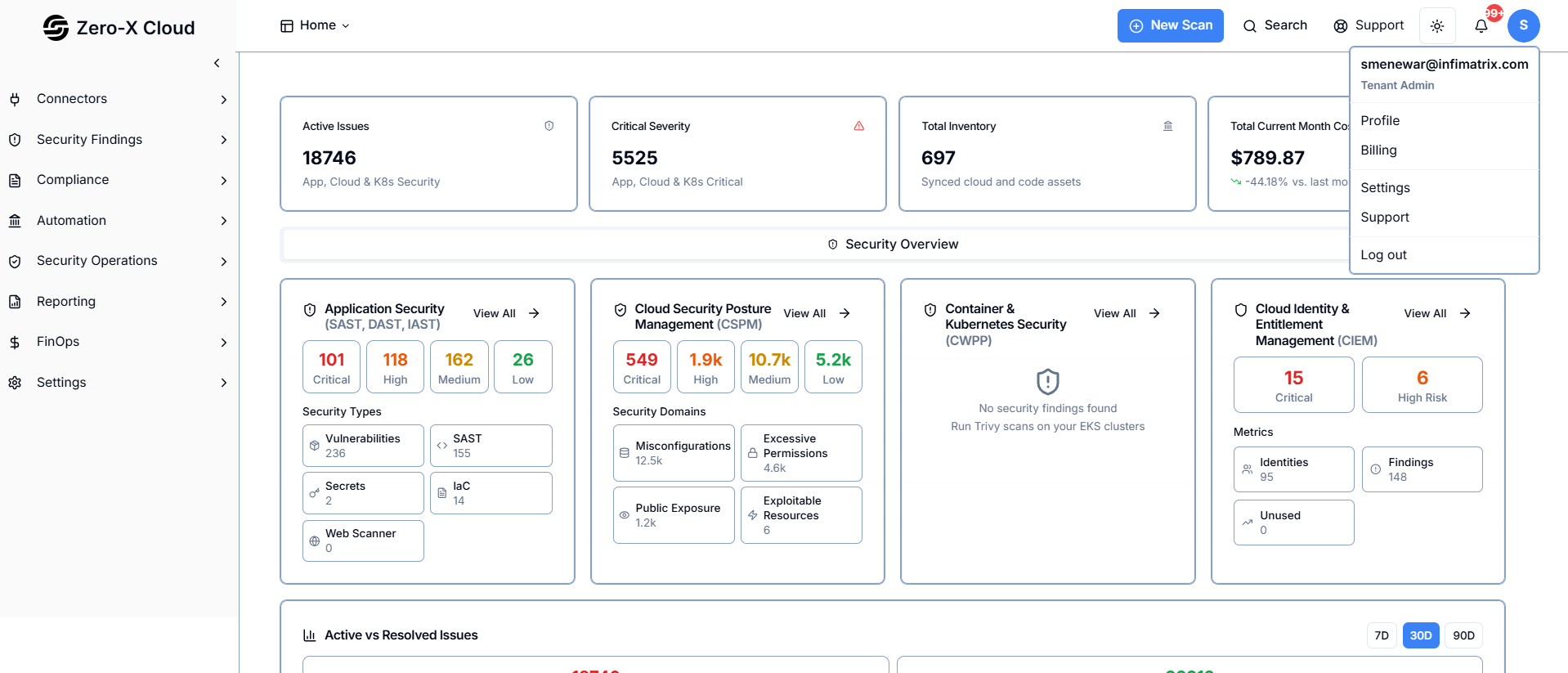
**Step 1 :-** Click the **Profile Icon** in the upper-right corner of the application.
**Step 2 :-** Select **Support** from the dropdown menu.
**Step 3 :-** The application redirects to the **Support Center page**, where all support tickets are listed.
 ## 2. Support Center Overview
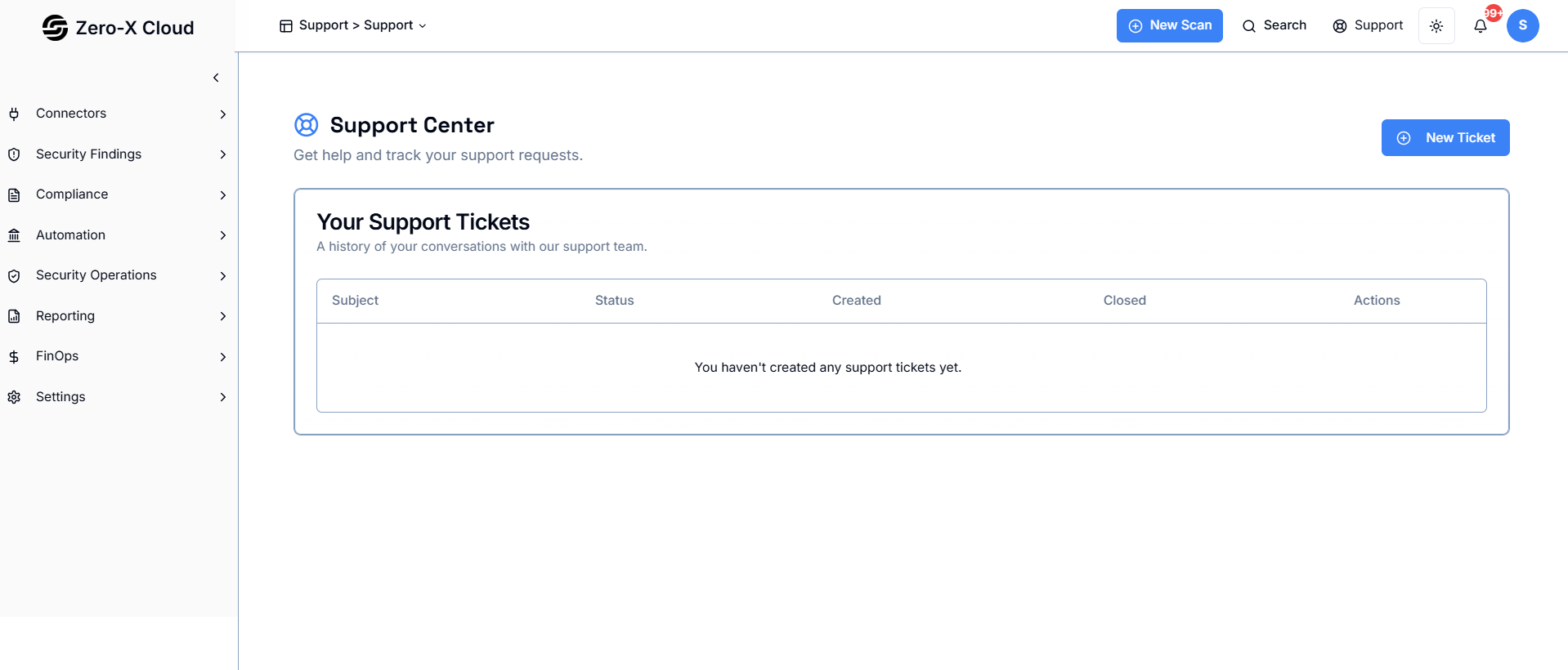
The Support Center displays a table of all previously created tickets.
Each record contains :-
## 2. Support Center Overview
The Support Center displays a table of all previously created tickets.
Each record contains :-
**a :-** Subject
**b :-** Status
**c :-** Created Date
**d :-** Closed Date
**e :-** Actions (Edit / Delete)
If no tickets exist, a message is displayed indicating that no support tickets have been created.
 ## 3. Creating a New Support Ticket
1. Click **New Ticket** on the Support Center page.
2. Enter a **Subject** that briefly summarizes the issue.
3. Enter a **Description** with detailed information, including steps to reproduce the problem if applicable.
4. Click **Submit Ticket** to create the ticket.
5. A confirmation message appears, and the new ticket is added to the Support Tickets list.
## 3. Creating a New Support Ticket
1. Click **New Ticket** on the Support Center page.
2. Enter a **Subject** that briefly summarizes the issue.
3. Enter a **Description** with detailed information, including steps to reproduce the problem if applicable.
4. Click **Submit Ticket** to create the ticket.
5. A confirmation message appears, and the new ticket is added to the Support Tickets list.
 ## 4. Managing Existing Tickets
### 4.1 Editing a Ticket
## 4. Managing Existing Tickets
### 4.1 Editing a Ticket
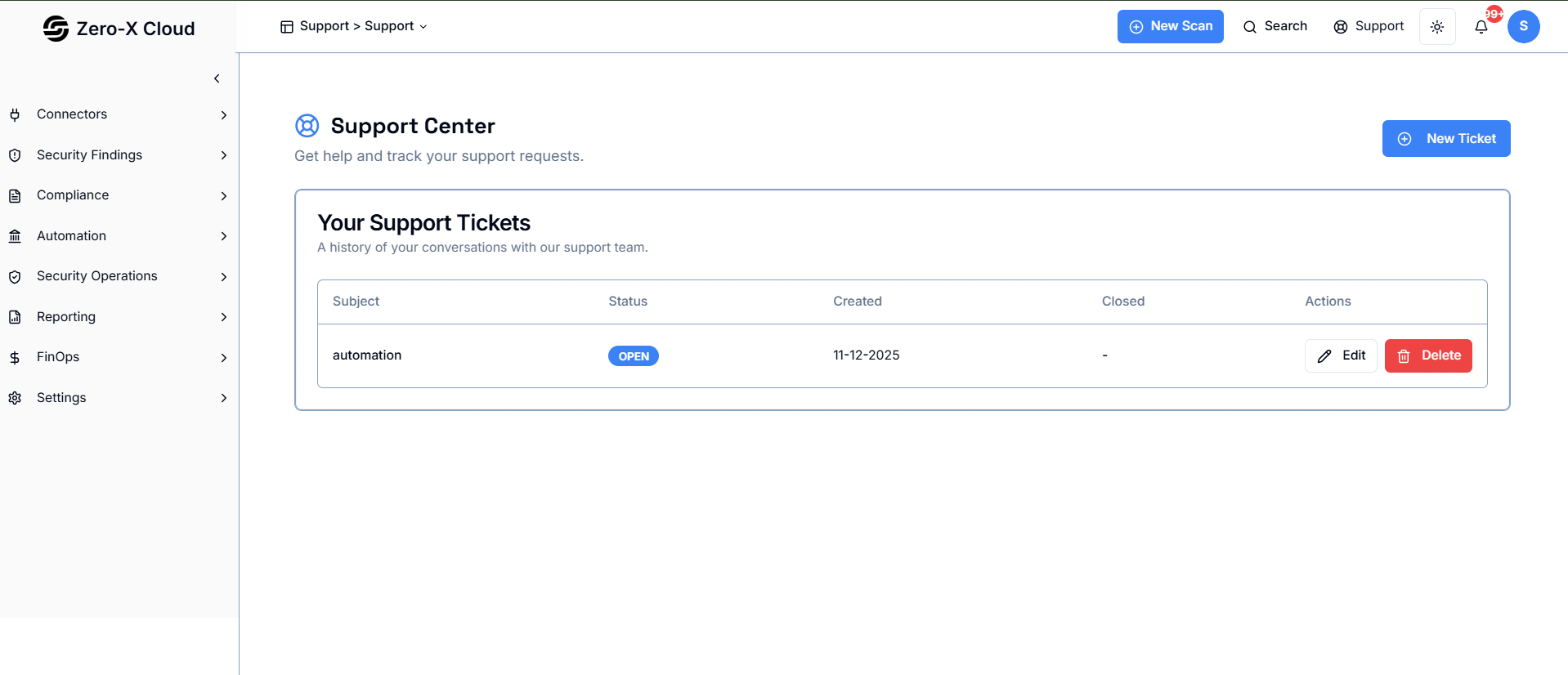
**>** Locate the ticket in the Support Tickets table.
**>** Click **Edit** in the Actions column.
**>** Update the **Subject** or **Description** as needed.
**>** Save the changes.
### 4.2 Deleting a Ticket
**>** Find the ticket you want to remove.
**>** Click **Delete** in the Actions column.
**>** Confirm deletion when prompted.
**>** The ticket is permanently removed from the list.
 ## 5. Ticket Status
**>** **OPEN** :– The ticket has been created and is awaiting review or action.
**>** **CLOSED** :– The issue has been resolved, and the ticket is marked as completed by the support team.
> Users cannot manually close tickets; closure is performed by the support team.