

Cloud Security – Complete Detailed (End‑User & Admin Guide)
1. Introduction to Cloud Security Modules
This manual provides a deep, end‑to‑end understanding of Cloud Security operations. It covers onboarding cloud data sources, scanning, viewing results, understanding CSPM components, and performing remediation.It is intended for: - End Users (Analysts, Security Engineers)
2. What is CSPM (Cloud Security Findings Management)?
CSPM is a security solution that continuously monitors your cloud environment to identify misconfigurations, compliance violations, security risks, and potential attack paths.CSPM Helps With:
> Detecting insecure cloud configurations
> Identifying risky public exposure
> Monitoring excessive permissions
> Evaluating compliance frameworks (CIS, NIST, PCIDSS, etc.)
> Providing remediation steps (manual or AI-driven)
CSPM ensures that your cloud environment remains secure, compliant, and aligned with best practices.
3. Breakdown of CSPM Components
Below are detailed explanations of each security category visible after scans:3.1 Misconfiguration
Misconfigurations occur when cloud resources are not configured according to security best practices.Examples:
> S3 buckets allowing public read access
> IAM roles with overly permissive policies
> Security groups with open ports (0.0.0.0/0)
> Unencrypted storage (EBS, RDS, Blob)
3.2 Permissions (CIEM – Cloud Infrastructure Entitlement Management)
This module focuses on IAM and identity security.What it detects:
> Excessive permissions
> Unused permissions
> Privilege escalation risks
> Roles/users with admin-like access
Why it matters:
Attackers exploit excessive IAM permissions to compromise accounts.
3.3 Public Exposure
Shows cloud assets that are unintentionally exposed to the internet.Examples:
> Public S3 buckets
> Public VMs/EC2 instances
> Public Blob Storage
> Open database endpoints
Why it matters:
Public exposure leads to data leakage, ransomware, or unauthorized access.
3.4 Exploitable
Indicates cloud configurations that can be actively exploited by attackers.Examples:
> Weak IAM roles + public resource exposure
> Misconfigured network rules with known vulnerabilities
Why it matters:
Exploitable items represent high-risk attack paths.
3.5 Vulnerability
Lists vulnerabilities (CVEs) found in workloads, VMs, containers, or cloud services.Examples:
> Outdated OS packages
> Vulnerable container images
> Known exploitable CVEs affecting cloud workloads
Why it matters:
Vulnerabilities can be directly used to execute malware or privilege escalation.
4. End‑to-End Cloud Security Workflow
Below is the complete step-by-step process for both end-users and admins.Step 1 – Add Cloud Data Source (End User)
Navigation:Connectors → Data Source → Add Data Source
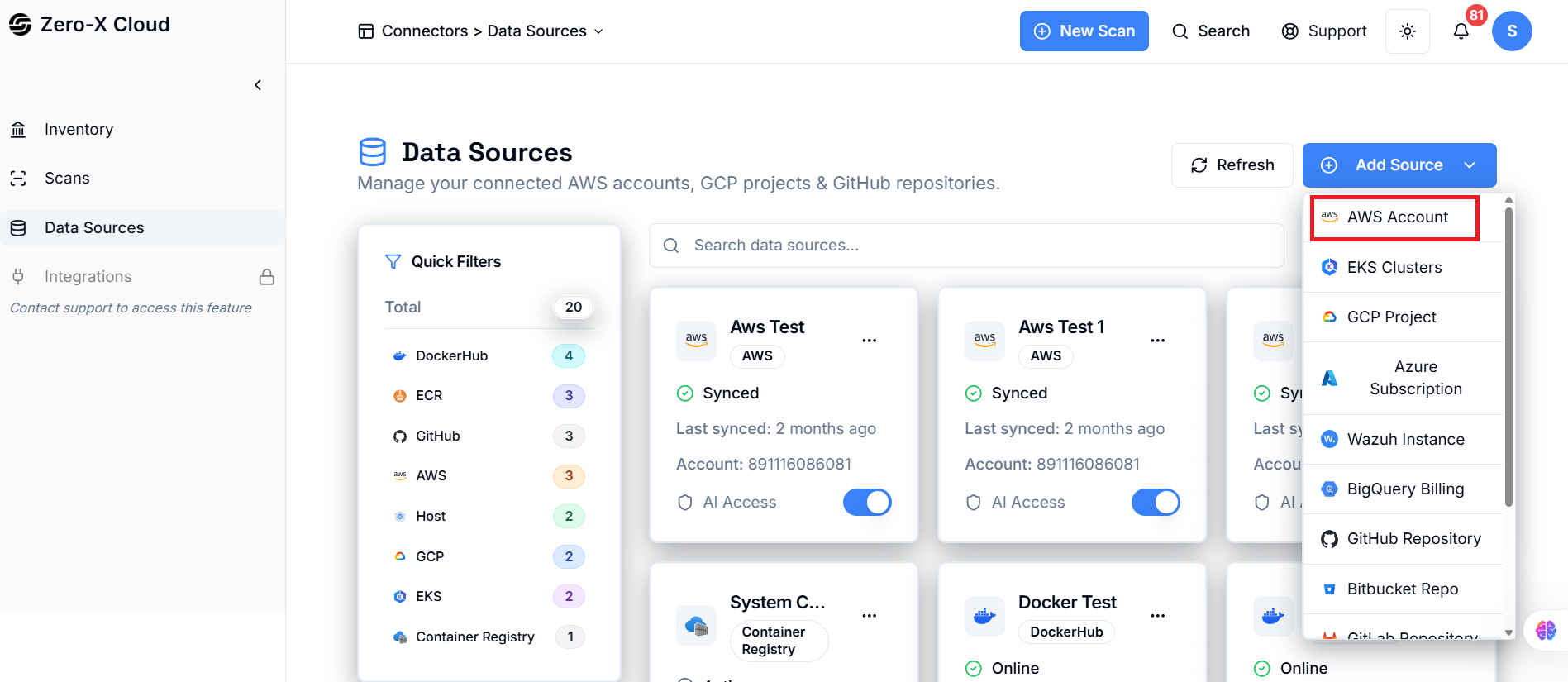
1. Click Add Data Source.
2. Select Cloud Provider (AWS / Azure / GCP).
3. Step 1 - Enter required details (Account ID, Access Key ID, Secret Access Key, etc.).
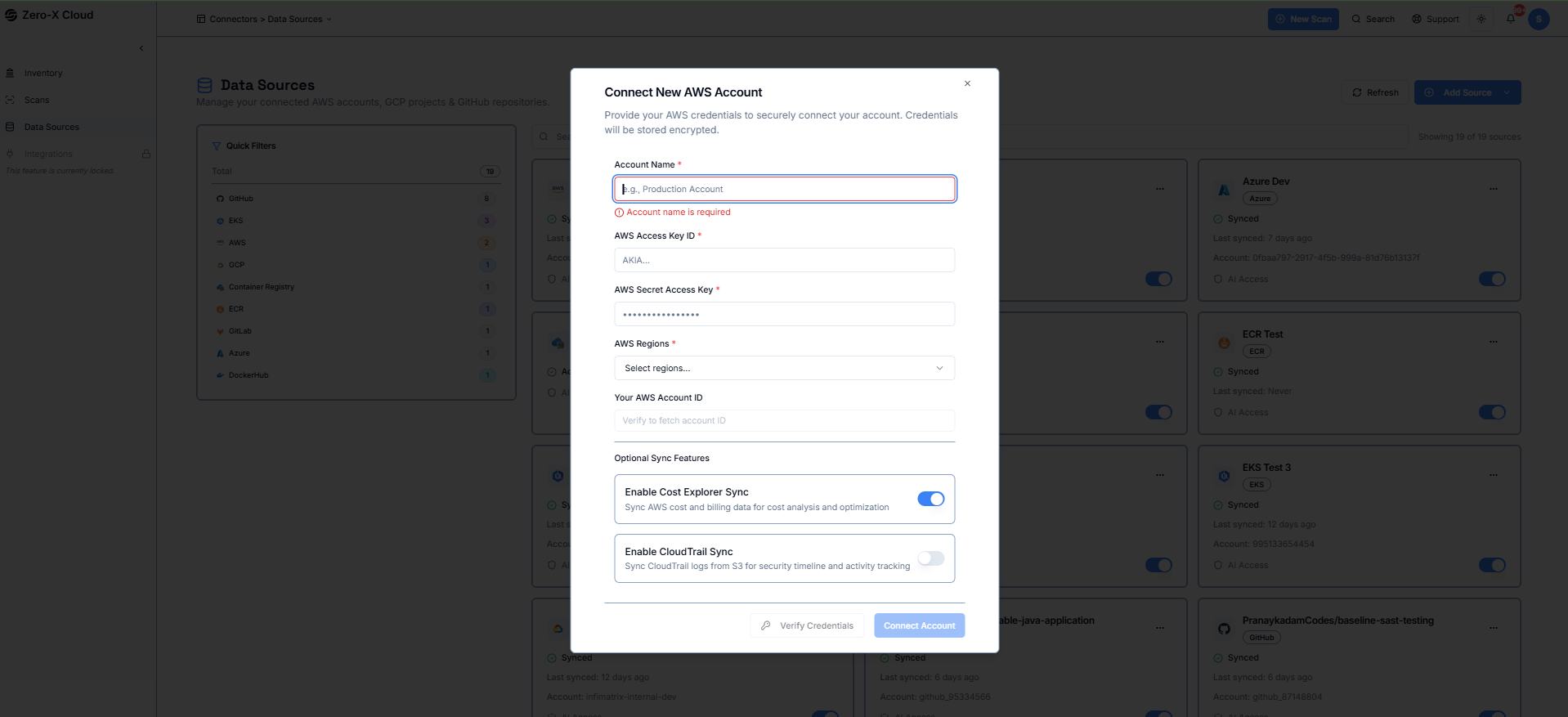
5. Step 2 - System Auto Sync and reflect Cloud Trail, ECR, EKS Cluster, and user can choose from dropdowns which Cloud Trail, ECR, EKS Cluster system should sync.
6. Once validated, click Connect.
Outcome:
> System triggers Auto Inventory Scan.
> System triggers Auto Cost Scan.
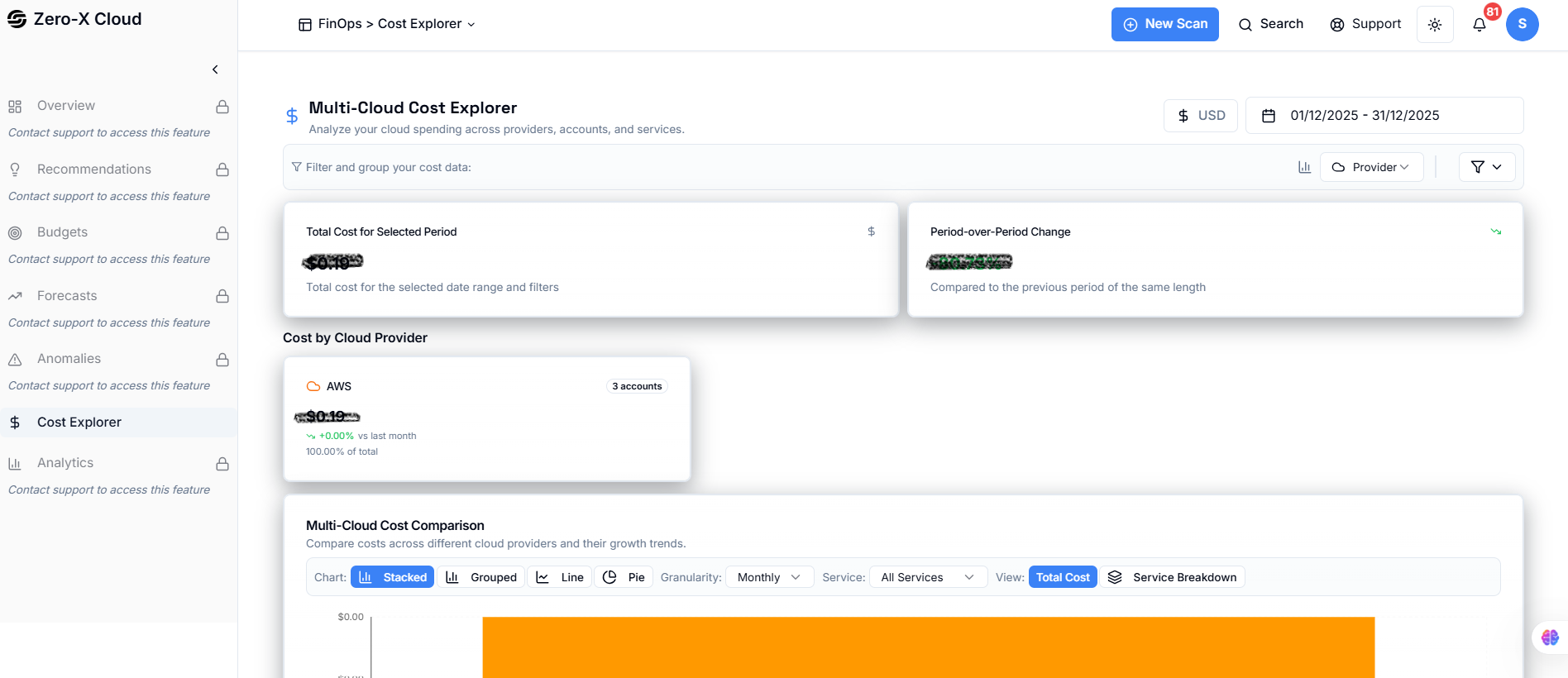
Step 2 – Automatic Inventory & Cost Sync
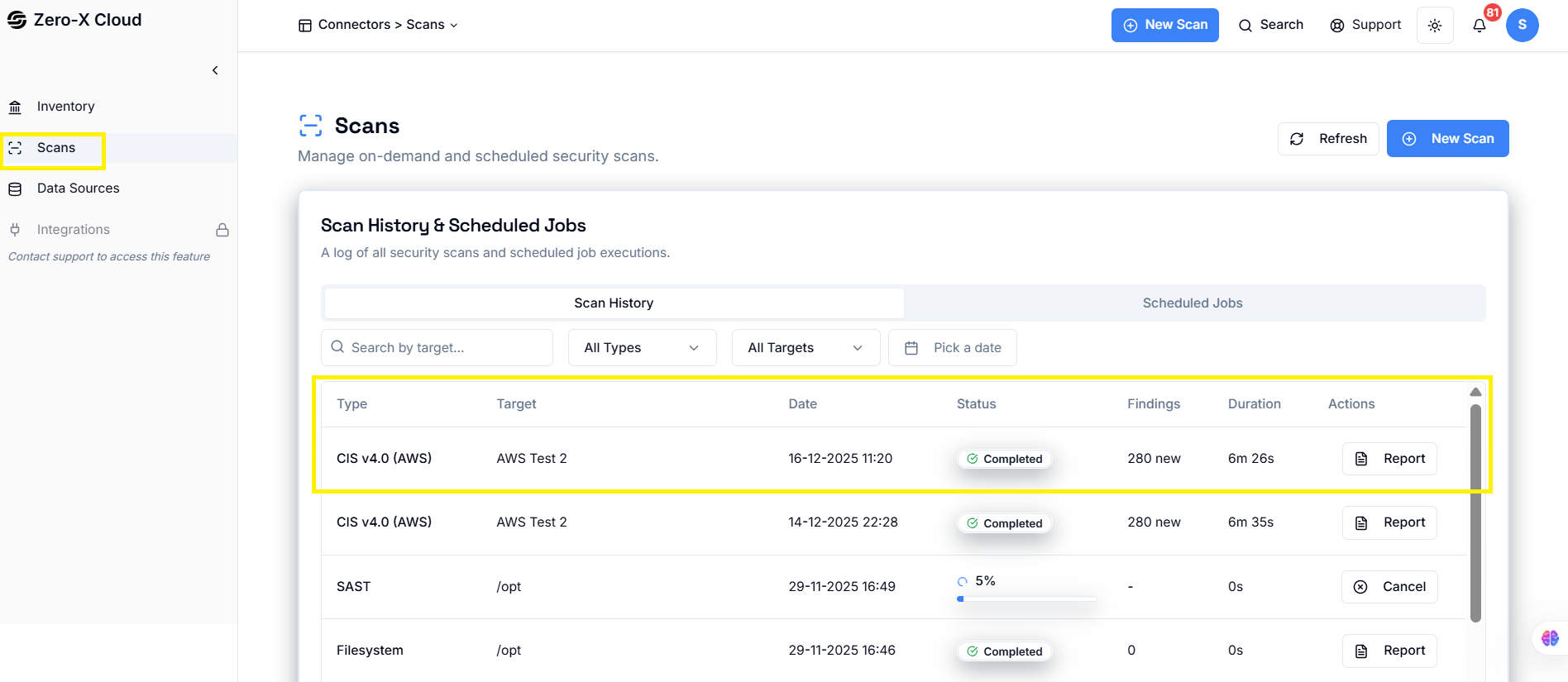
> Lists all cloud resources across all regions.
> Resource filtering and search become available.
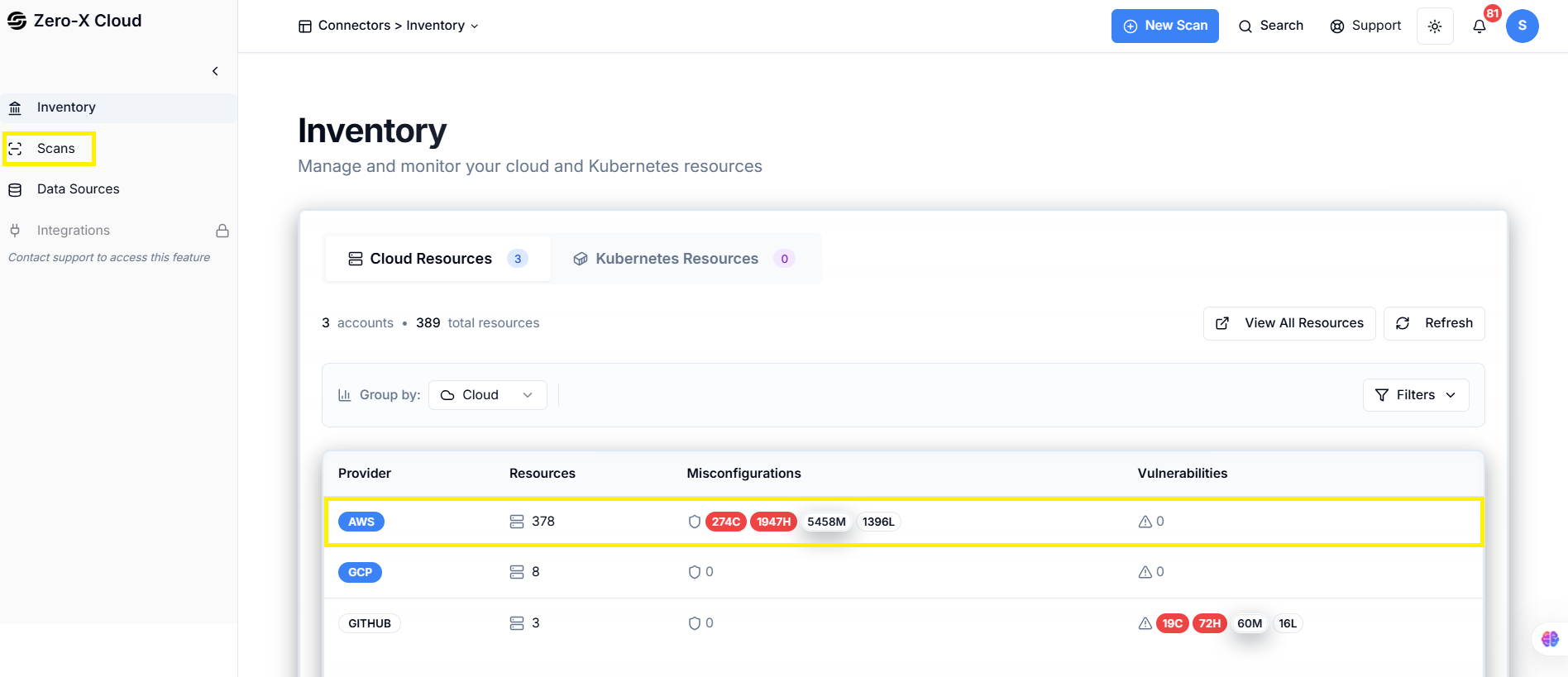
> Displays total cost, service breakdown, and region-wise cost.
Step 3 – Enable Compliances for CSPM (End User)
Navigation:Compliance → Available
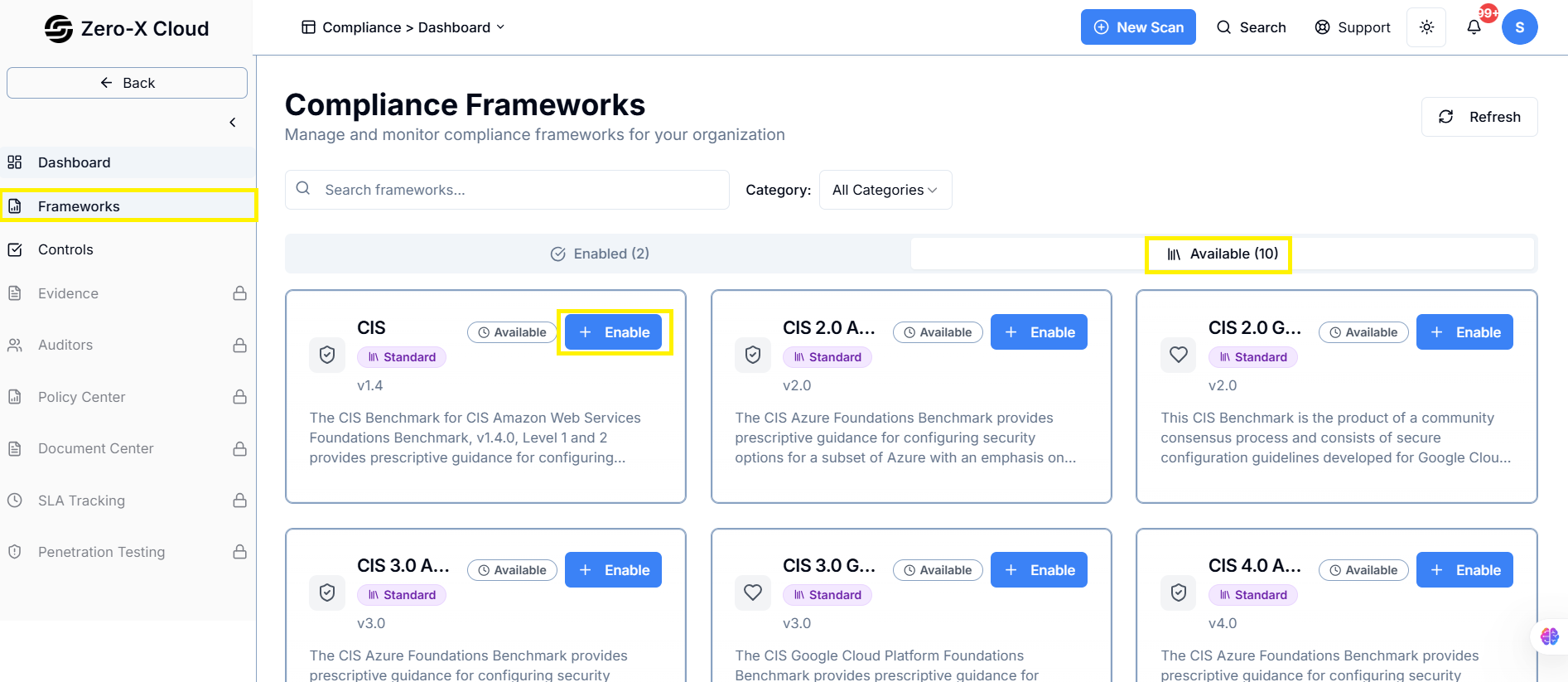
1. Open the Compliance Module.
2. In the Available tab, enable required frameworks.
3. Enabled items move to the Enabled tab.
Outcome:
> These compliances are used during CSPM scans.
Step 4 – Perform a New Security Scan (End User)
Navigation:
Scan → New Scan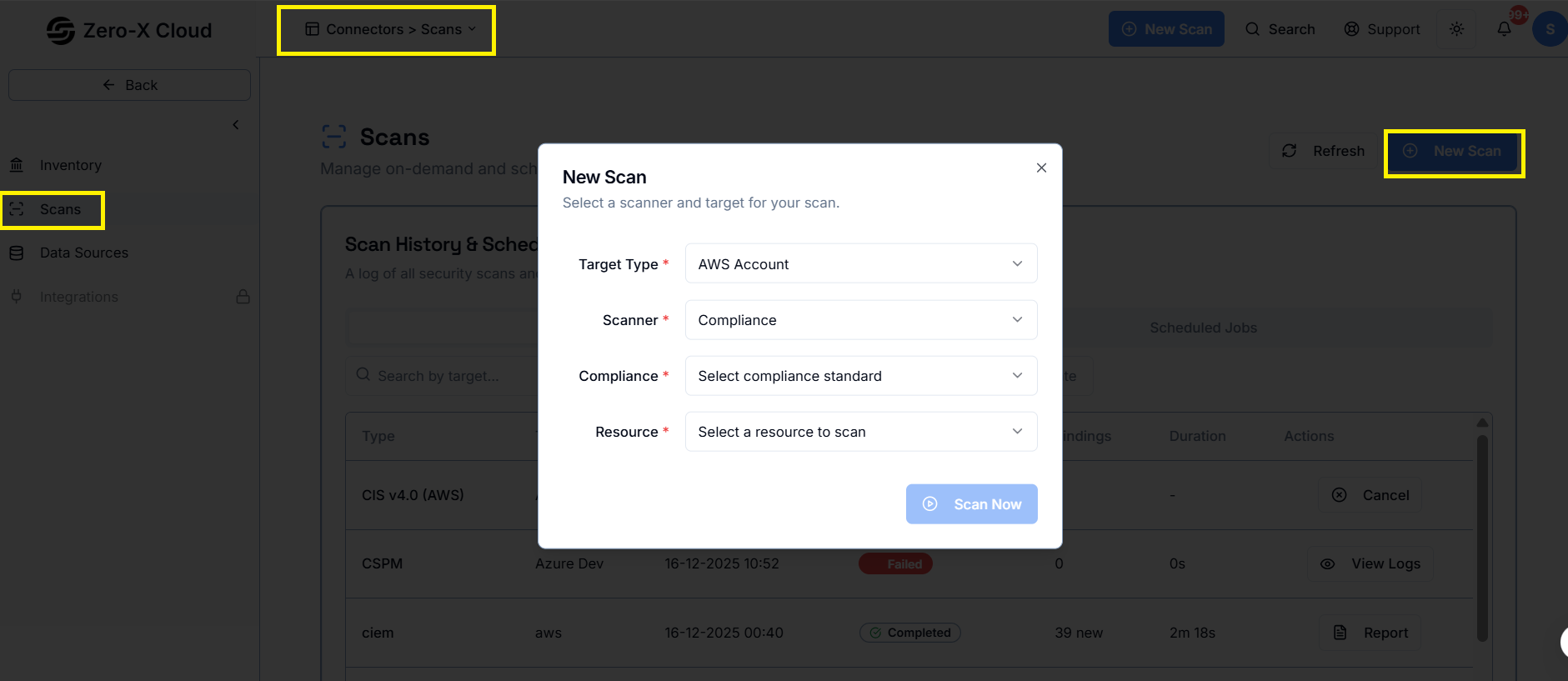
1. Click New Scan.
2. Select:
- Cloud Platform
- Scan Type (Compliance, CSPM, CIEM, etc.)
- Account
3. Start Scan.
Outcome:
> Findings get generated and stored.
Step 5 – View Findings Across Modules
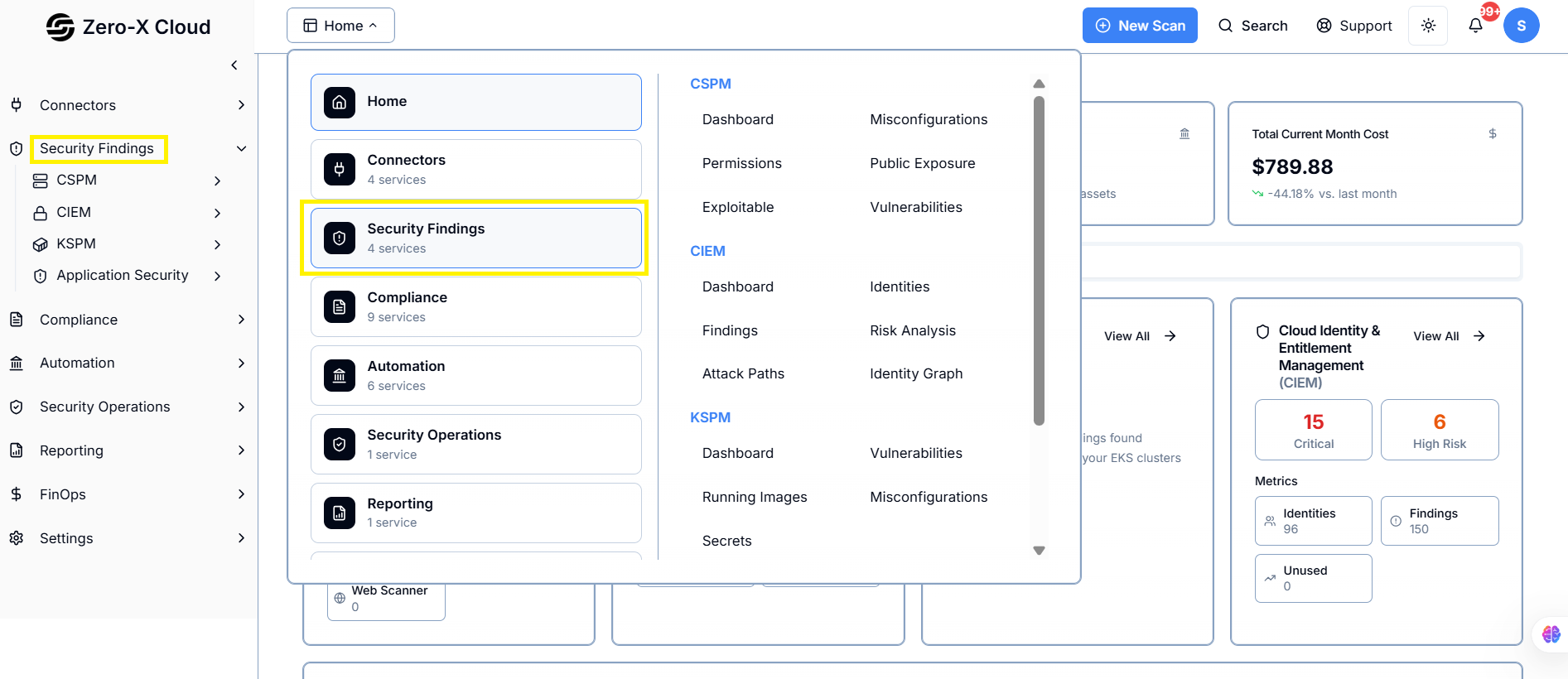
Navigation Paths:> Scan → Scan Results
> Security Findings → CSPM Dashboard
> Security Findings → Misconfiguration
> Security Findings → Permissions
> Security Findings → Public Exposure
> Security Findings → Exploitable
> Security Findings → Vulnerability
> Severity: Critical / High / Medium / Low
> Impact & Risk Summary
> Affected Resources
> Compliance Mapping
> Remediation Steps
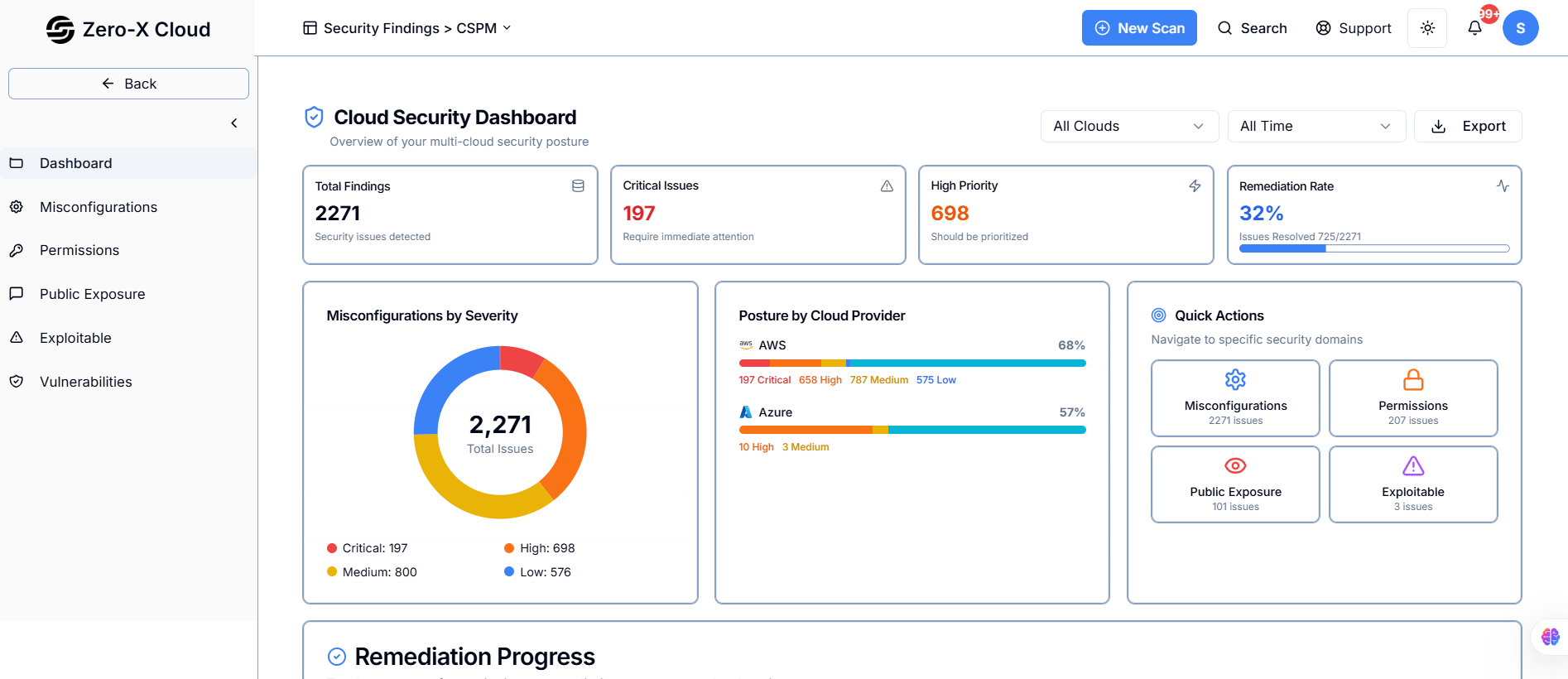
Step 6 – Remediation Options
The platform supports two remediation paths:A. AI-Based Remediation (End User)
Navigation:
CSPM → Misconfiguration → Select Finding → Remediation Tab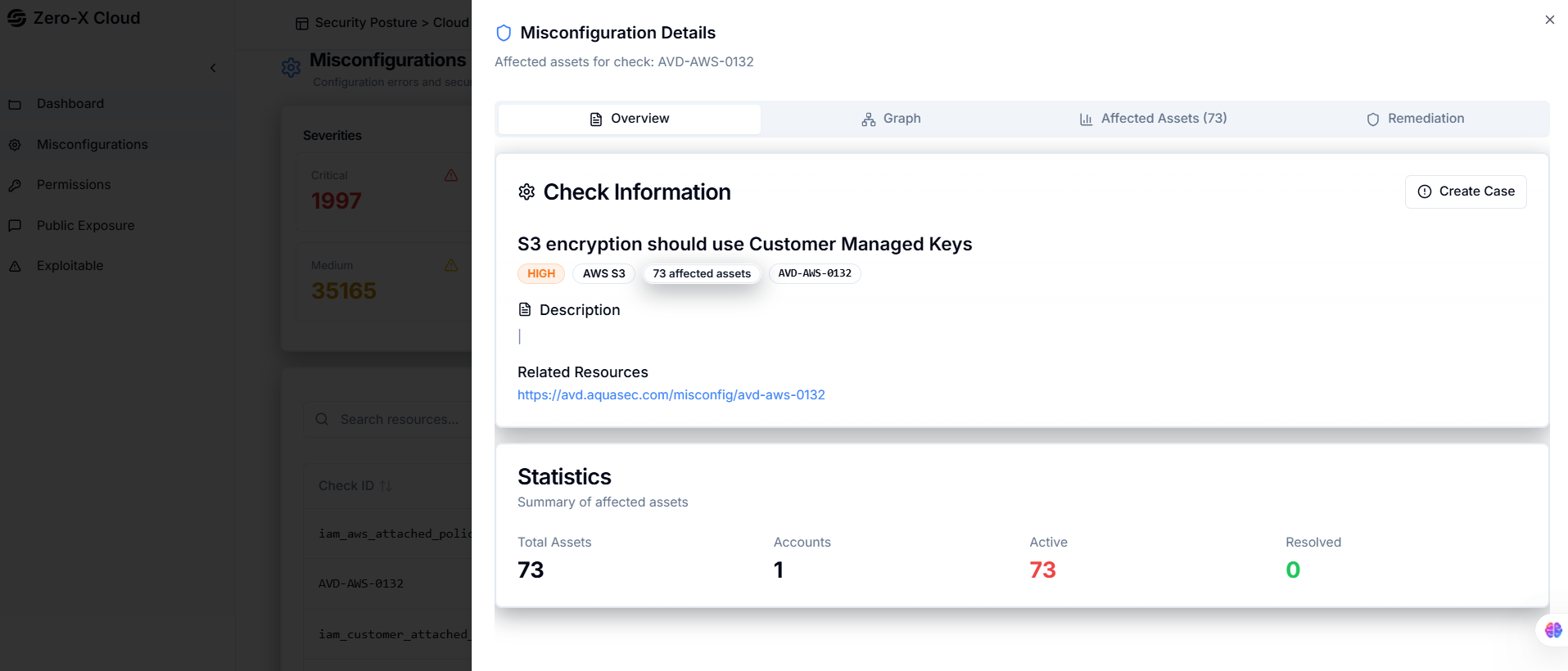
1. Open a misconfiguration finding.
2. Switch to Remediation tab.
3. Click AI Generation Script.
4. System generates automated remediation.
5. Click Execute to apply the fix.
Outcome:
> Issue gets resolved automatically.
B. Manual Remediation (End User Execution)
End User Steps:> When viewing a finding:
- Go to Remediation tab.
- If a script exists for that check, the Execute button appears.
- Click Execute to remediate.